
Welcome to Vialchemy
Vialchemy is a tracker for people who take their protocol seriously. You log what you take, how you feel and what your bloodwork says, and the app shows you what's actually changing.
- Logs doses, vials, check-ins, weight, water, protein, food, fasting and progress photos.
- Explains with a cited Library, where every claim has a source you can tap.
- Interprets with estimated level curves, lab reports read for you and Ask the Alchemist, an AI that answers from your own log.
- Keeps you going with The Climb, a streak you build one day at a time.
Vialchemy is a personal tracker and learning tool. It isn't medical advice and never tells you what dose to take. Set your doses with your prescriber.
Getting set up
Setup takes about two minutes, and every answer changes something in the app. You can skip any screen after the first three.
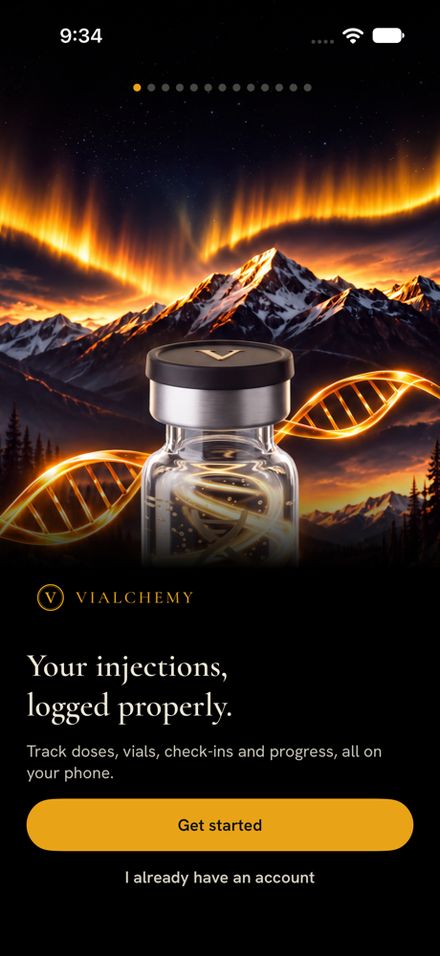
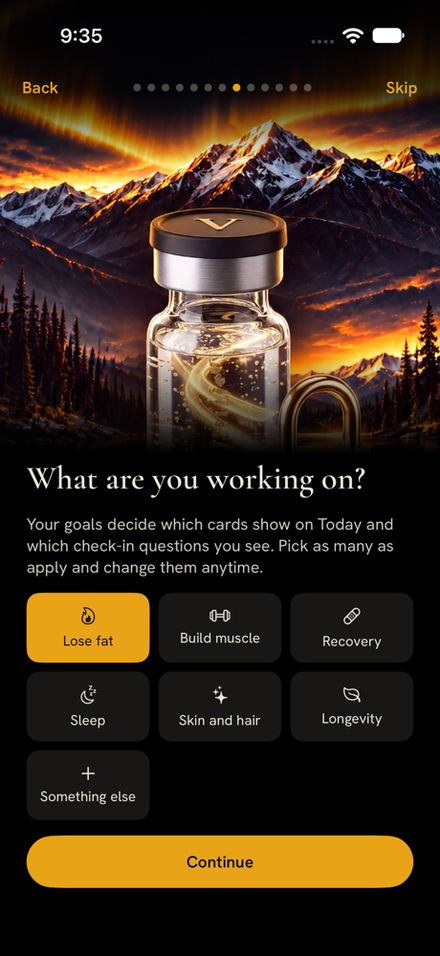
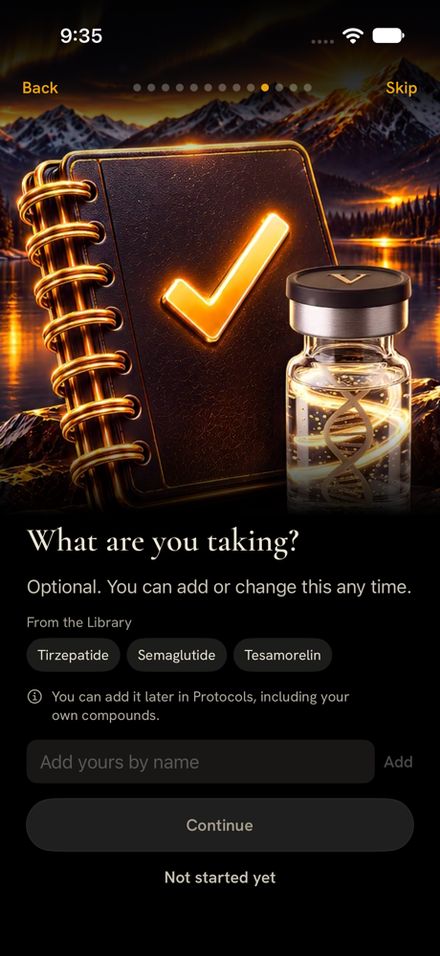
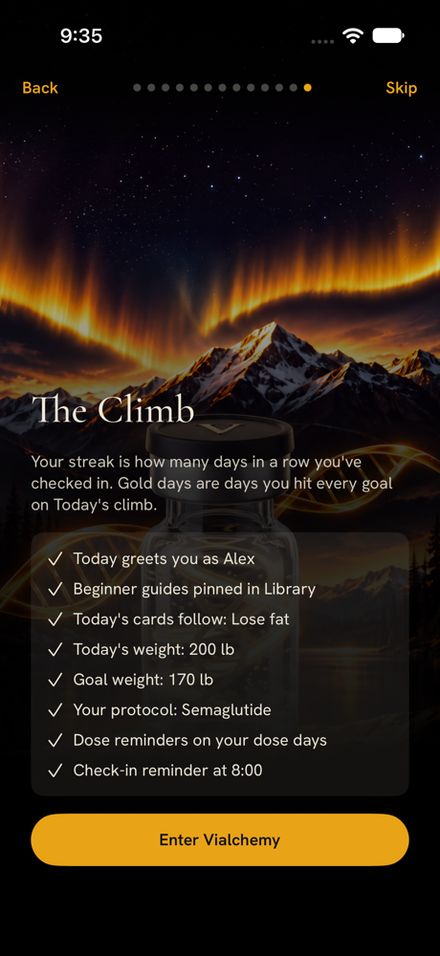
- Get started. Tap Get started, or I already have an account if you've used Vialchemy on another iPhone.
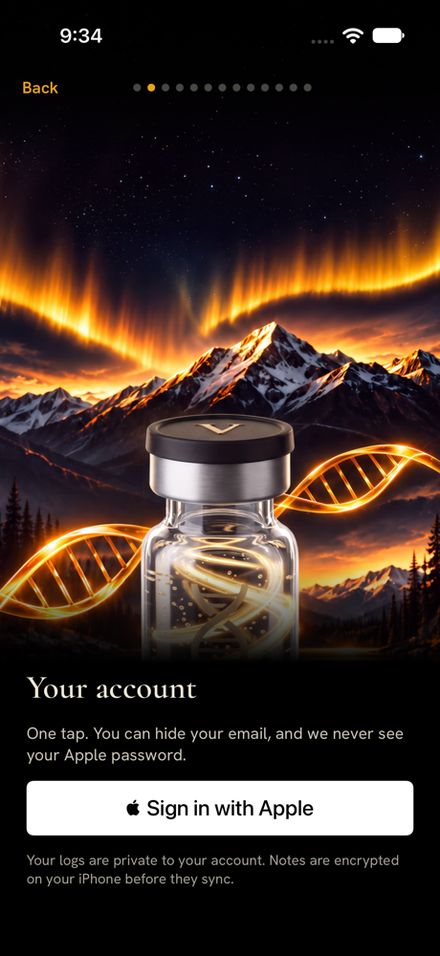
- Sign in with Apple. One tap. You can hide your email, and Vialchemy never sees your Apple password.
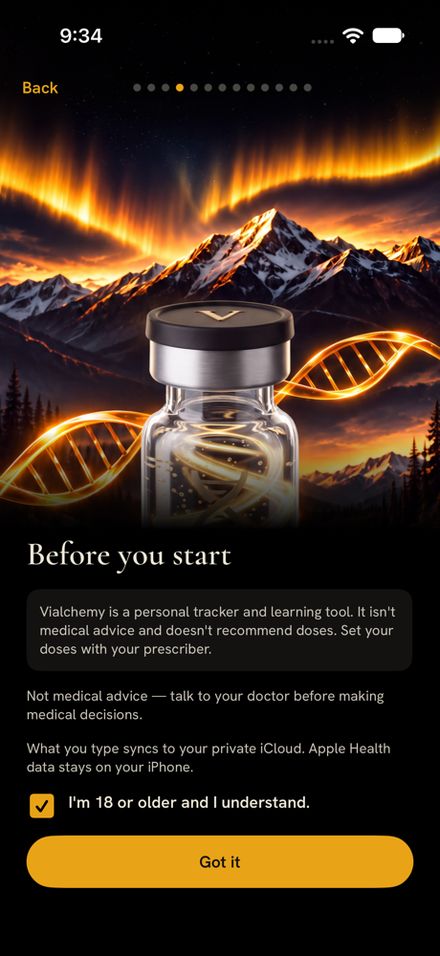
- Before you start. Read the disclaimer, tick I'm 18 or older and I understand, then tap Got it. Vialchemy is for adults only.
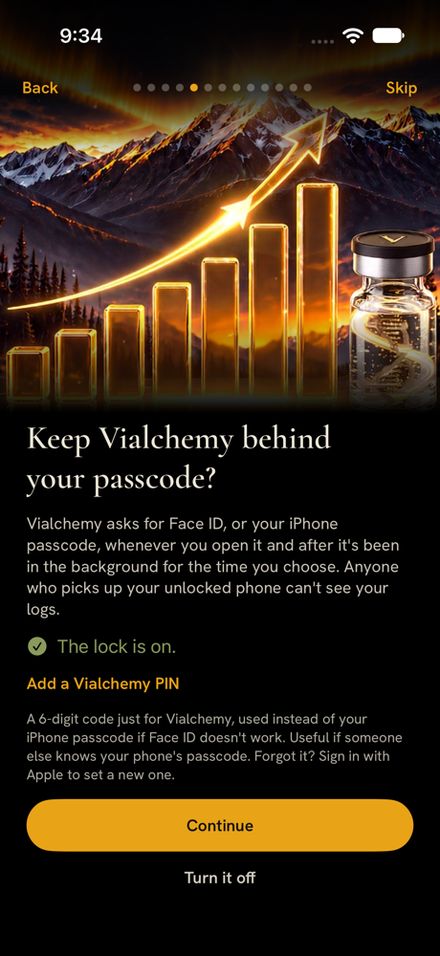
- Lock. Keep Face ID on so nobody who picks up your unlocked phone can open your log. You can add a 6-digit Vialchemy PIN.
- About you. Your name, how familiar you are with tracking (New to this turns on step-by-step walkthroughs), your goals, and your current and goal weight.
- What you're taking. Pick from the Library or add your own by name, then your dose days and whether you have a vial or pen open now. You can also tap Not started yet.
- Reminders and Apple Health. Turn on dose-day and check-in reminders, then choose whether to connect Apple Health.
- The Climb. A recap of everything you set up. Tap Enter Vialchemy.
You can change every answer later in Settings.
Today
Today is your home screen: what's due, what you've done and one tap to log the rest. The tabs along the bottom are Today, Log, Food, Review and More.
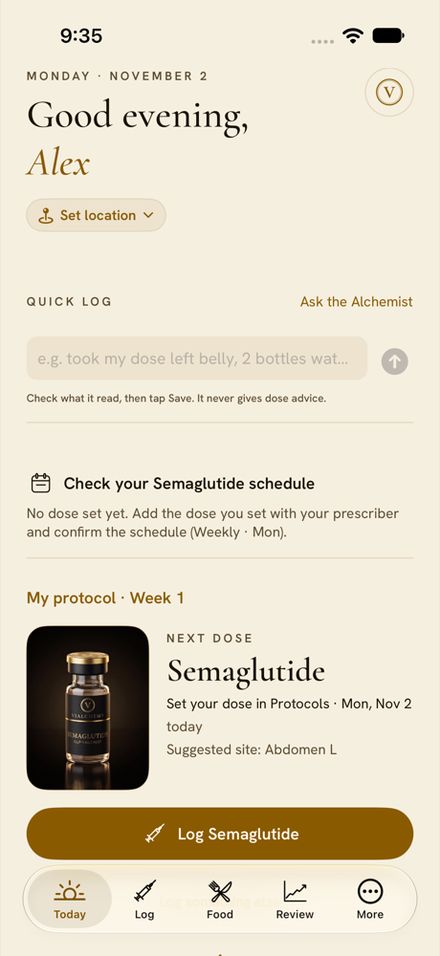
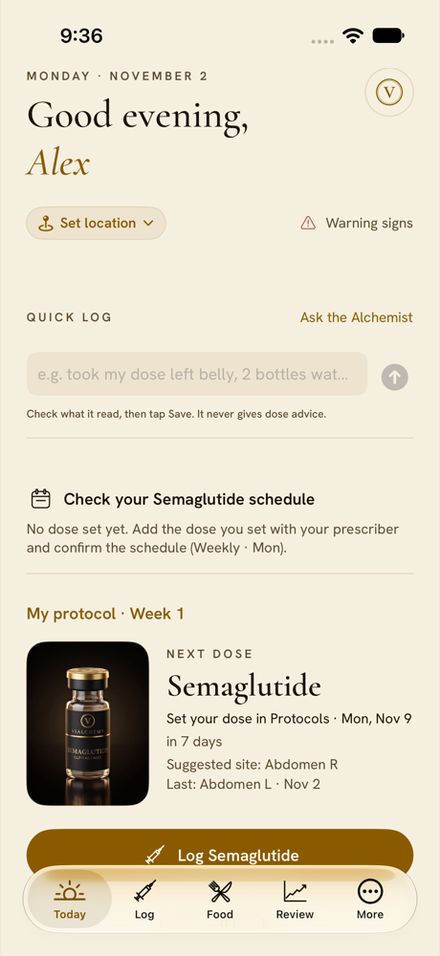
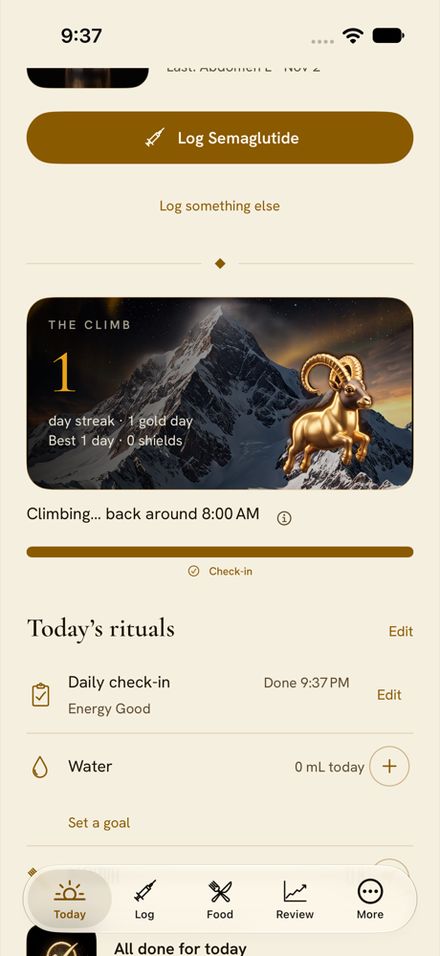
- Your greeting and the round V button, which opens Ask the Alchemist.
- Quick log. Type it the way you'd say it, for example "500 mL water" or "weight 212". Check what it read, then tap Save.
- Notices such as low stock or a schedule to confirm.
- Next dose. Your protocol, the week you're on, the next compound due and a suggested injection site. Tap Log to record it.
- The Climb and Today's rituals: the daily check-in, water, protein and fasting.
Make it yours
Tap Customise Today at the bottom of the screen, or go to Settings. Reorder or hide any section or card, and tap Show everything to put it all back. The layout is saved on this iPhone only.
Logging a dose
Tap Log on Today's Next dose card, or Log dose on the Log tab. A dose takes about ten seconds to record.
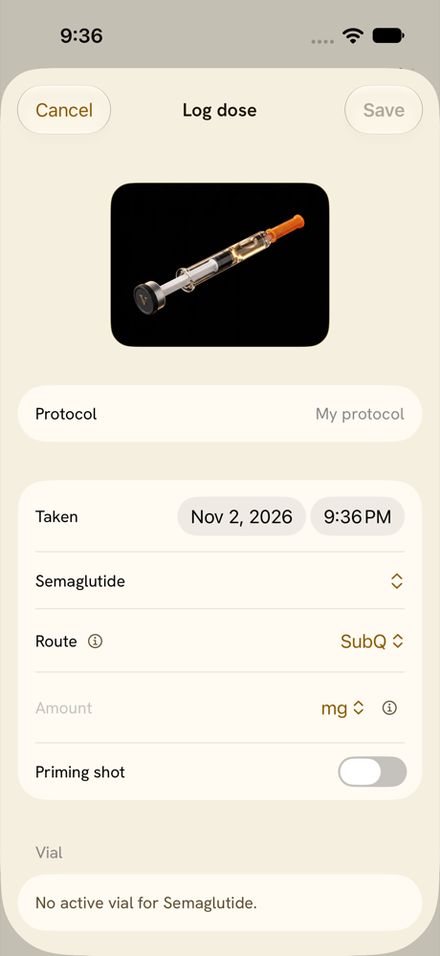
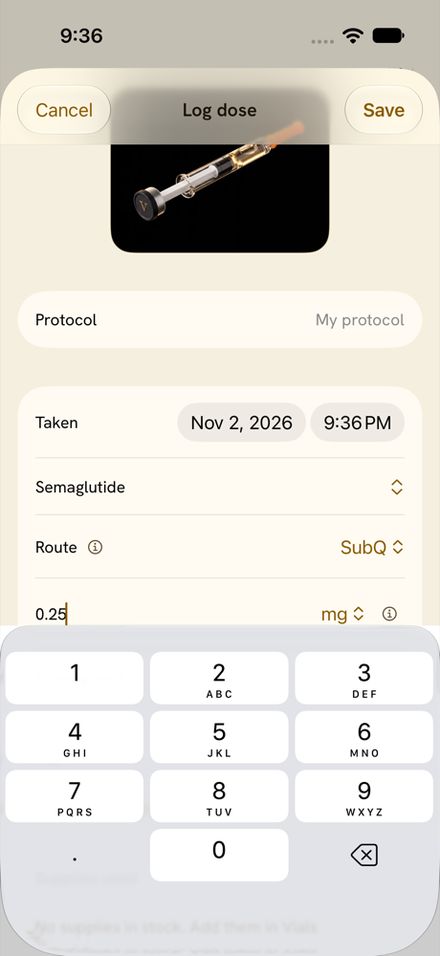
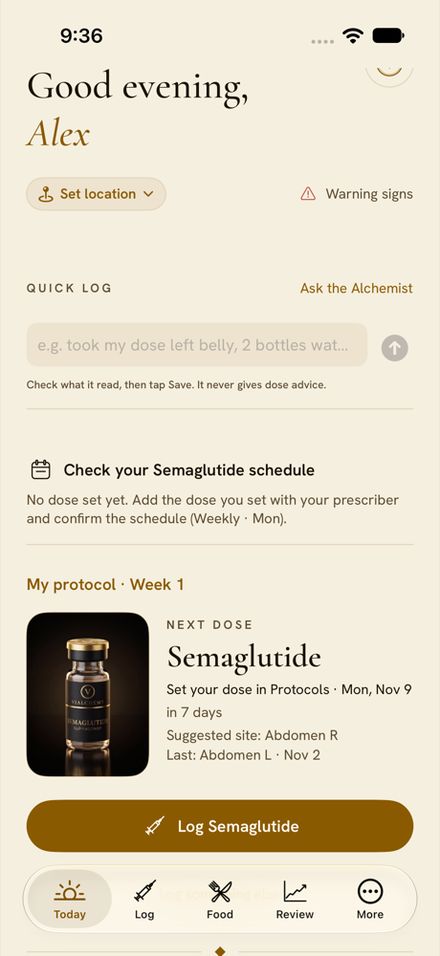
- Check the protocol, date and time, compound and route (SubQ, for example). The date and time default to now.
- Type the amount you took and pick its unit. Vialchemy never fills in an amount for you.
- Turn on Priming shot if this was a pen prime, and pick the vial or pen it came from so your supply count stays right.
- Tap Save.
Today then moves your next dose forward and suggests the next injection site, so you rotate sites without keeping track yourself. Every dose you've logged is listed on the Log tab under Recent doses.
Daily check-in
The daily check-in is a one-minute record of how you feel, and it's what turns your log into trends. Open it from Today's rituals, or from the reminder at the time you picked.
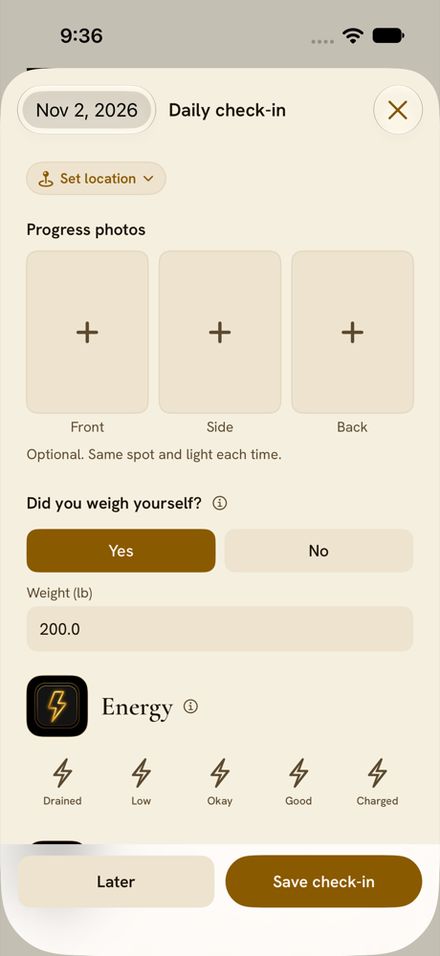
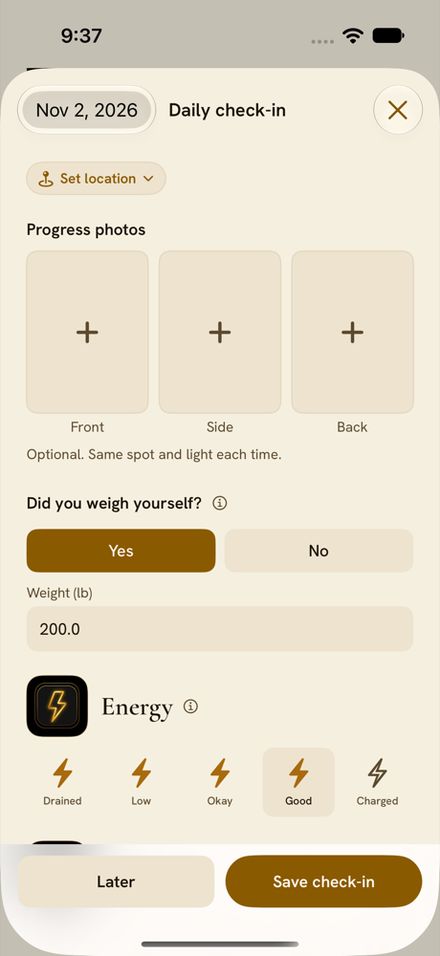
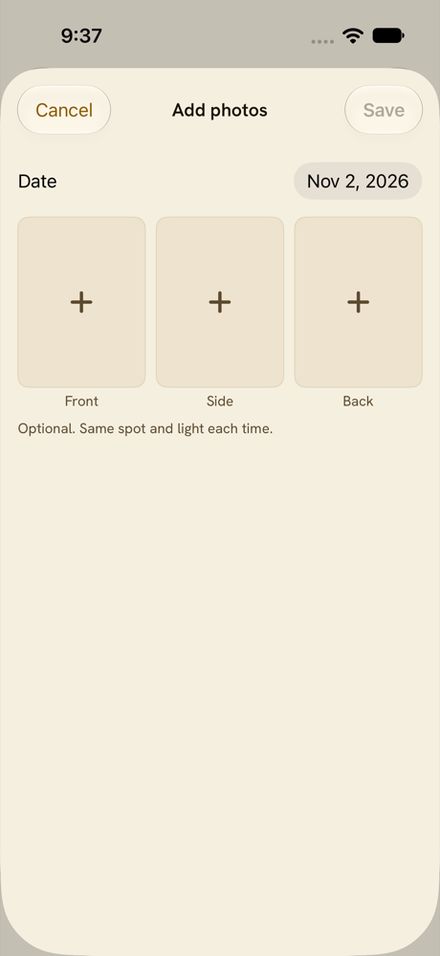
- Progress photos: front, side and back. Optional; use the same spot and light each time.
- Weight: tap Yes under Did you weigh yourself? and enter it.
- How you feel: energy, mood, sleep, appetite, food noise and side effects, each a quick tap.
Tap Save check-in when you're done, or Later to come back to it. A saved check-in counts toward your Climb streak.
Every field shows by default. To hide the ones you don't use, tap Customise daily check-in at the bottom of the check-in, or find it in Settings. A field that already has a value that day still shows.
Protocols
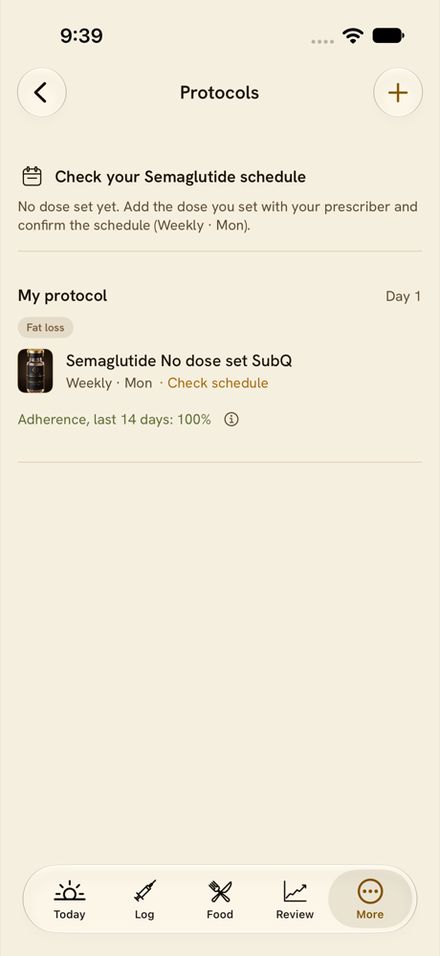
A protocol is the set of compounds you're running together, with their schedules. Find yours under More → Protocols, or tap + to start a new one.
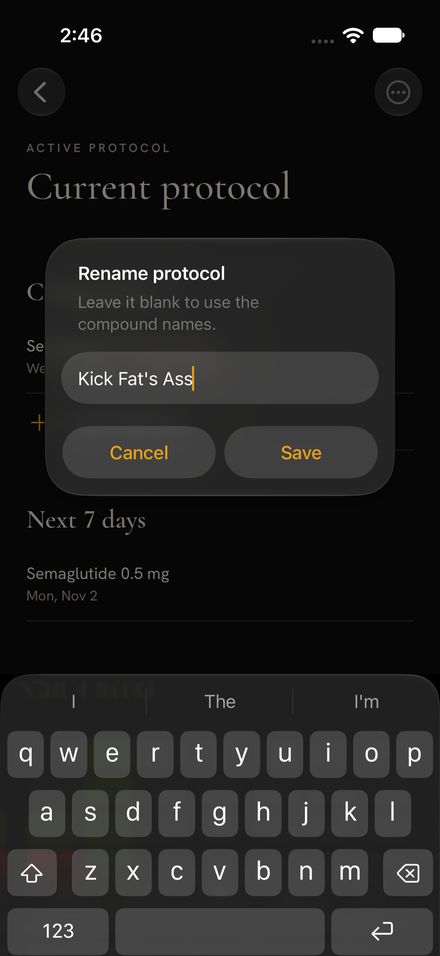
Name it
Up to 40 characters, emoji welcome. Leave it blank and it shows the compound names. To rename, tap the title on the protocol's page. Your protocol name shows on Today ("Kick Fat's Ass · Week 3"), never on share cards or widgets.
Combination check
When a protocol has two or more compounds, each pair shows one of three results, with the reason and its sources. Vialchemy never calls a combination safe.
Change a dose
From Today's dose card or the compound on the protocol page, enter the new amount, the date it starts and an optional note. Doses you already logged keep their amounts. Every change is kept in that compound's dose history, with Undo.
Your own step-up plan
Add steps by date or "after N weeks". Nothing is filled in for you and a step never starts on its own: on the day, a card and a reminder ask you to Step up, Stay or Edit plan. You get a heads-up 3 days before by default.
How's this dose going?
Compares your current dose period with the one before: weight trend, appetite, sleep, side effects, doses taken and labs. Numbers only, no verdict. Share with my clinician turns it into a PDF.
Adherence for the last 14 days shows under each protocol. Protocol names stay off your Lock Screen unless you turn on Show protocol names on lock screen in Settings → Privacy.
Estimated levels
Level curves estimate how much of each compound is in your system over time, built from your logged doses and the compound's published half-life.
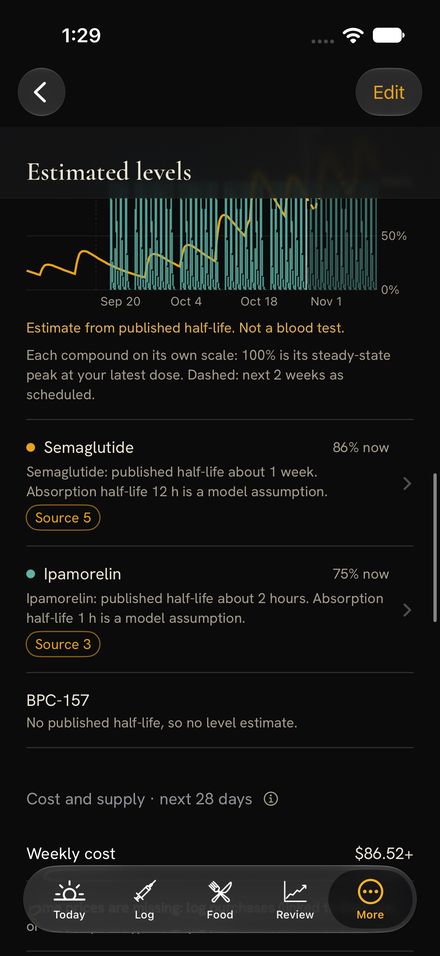
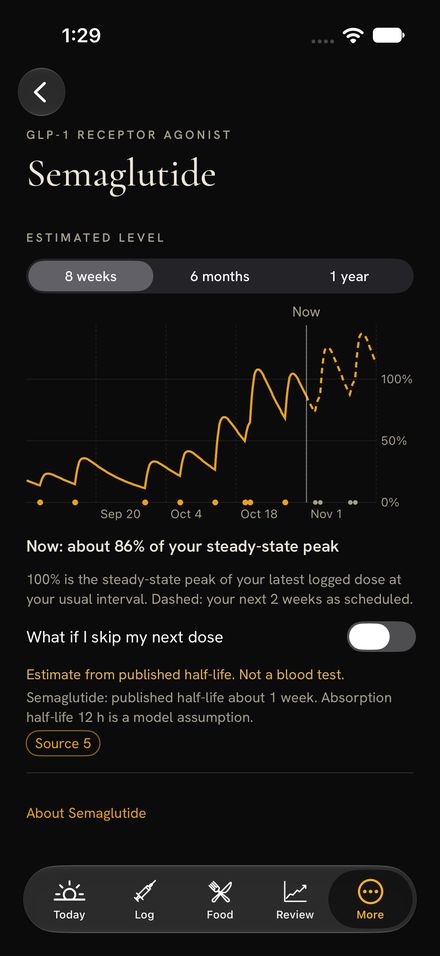
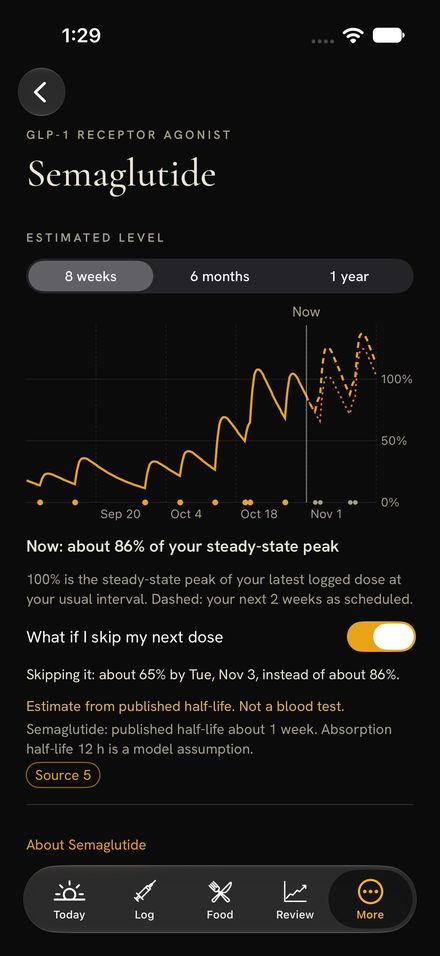
- Where to find them: on a protocol's page (every compound on one chart, each on its own scale) and on a compound's Library page once you log or schedule it. Tap a compound for its own chart.
- How to read them: 100% is the peak you'd settle at with your latest dose on your usual schedule. The solid line is what you logged, the dashed line is the next two weeks as scheduled, and dots mark each dose.
- What if I skip my next dose: turn it on to see the dip and where you'd be before the following dose, with and without the skip.
- Ranges: 8 weeks, 6 months or 1 year. Short-acting compounds (half-life under 6 hours) open on 48 hours instead.
An estimate, not a blood test, and every chart says so. The source for each half-life is a tappable chip under the chart. A compound with no published half-life shows no curve.
Ask the Alchemist
Vialchemy's AI knows your whole log, answers from it and from the cited Library, and can add, change or delete entries once you confirm each one. Open it with the round V button on Today, or from More → Ask the Alchemist.
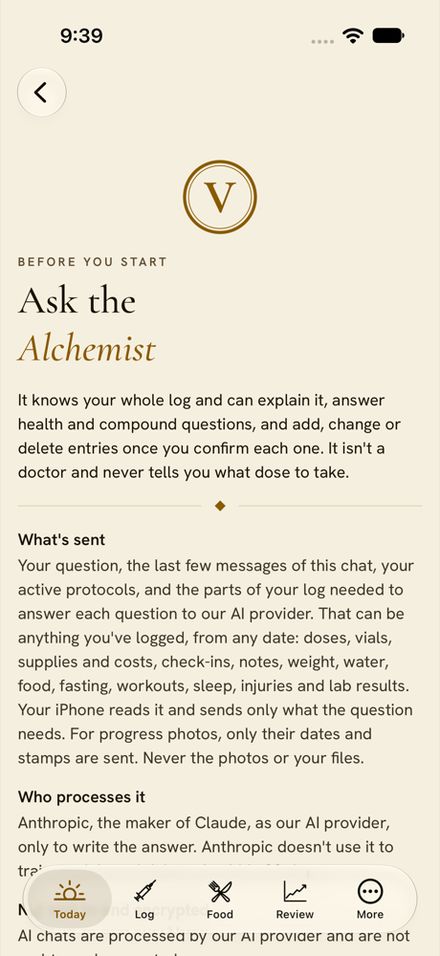
The first time, a screen explains what's sent, who processes it (Anthropic, the maker of Claude) and what's kept. The Alchemist stays off until you accept. AI chats aren't end-to-end encrypted.
Things to try
Changes come as cards
When you ask it to log or edit something, it drafts a card for each change. Nothing is saved until you tap Confirm; Discard drops it, and Undo reverses a confirmed card. Deleting anything asks a second time.
What it won't do
Tell you what dose to take, convert doses, or point you to a seller. Answers about the Library come with numbered sources you can tap. Ask about a compound that isn't in the Library and it says so, then offers to suggest it for the Library.
Quick log and your allowance
Quick log on Today uses the same engine. Simple entries like "500 mL water" are read on your phone instantly and for free; only the parts it can't read go to the Alchemist. Your monthly allowance and usage are in Settings, with a warning at 80%, and you can turn the Alchemist off there too. A weekly summary of your log appears in Review → Your week, made once a week.
The Library
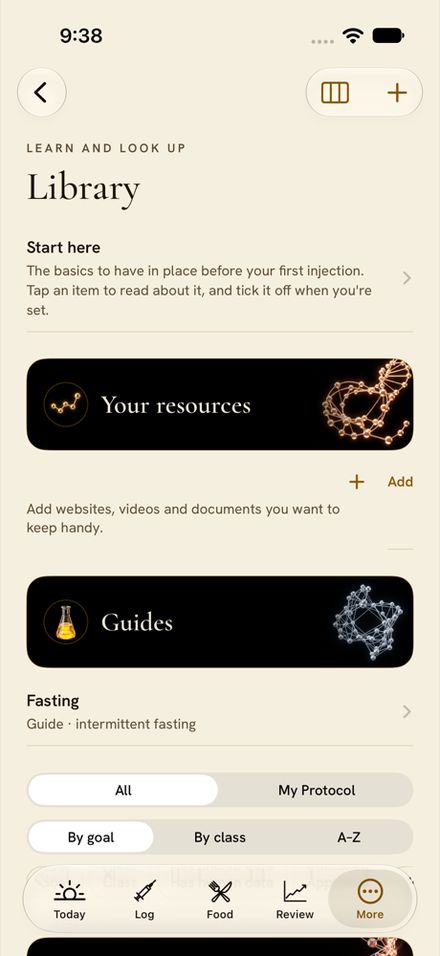
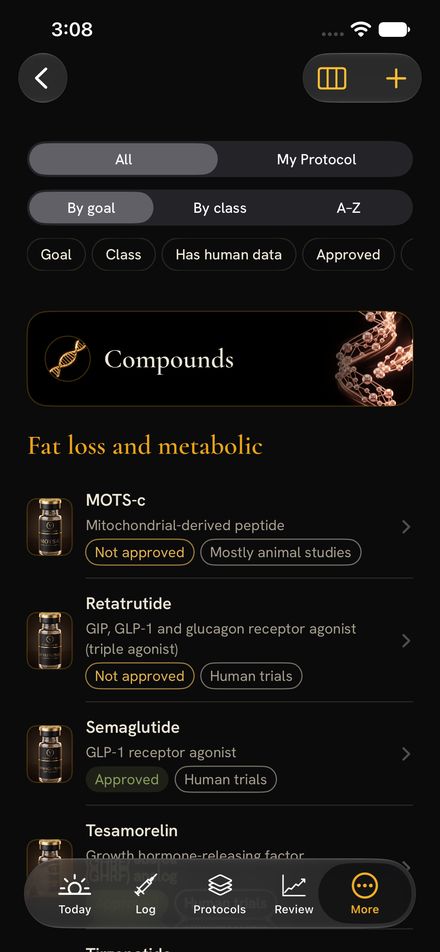
About 150 compounds, from GLP-1s to everyday supplements, and every claim has a source you can tap. It updates on its own, with no app update. Open it from More → Library.
Finding a compound
Search by name or nickname (a small typo is forgiven), or browse By goal, By class or A–Z. Filters narrow it to approved compounds, ones with human data, a goal or a class. My Protocol shows only what you take.
What's on a compound page
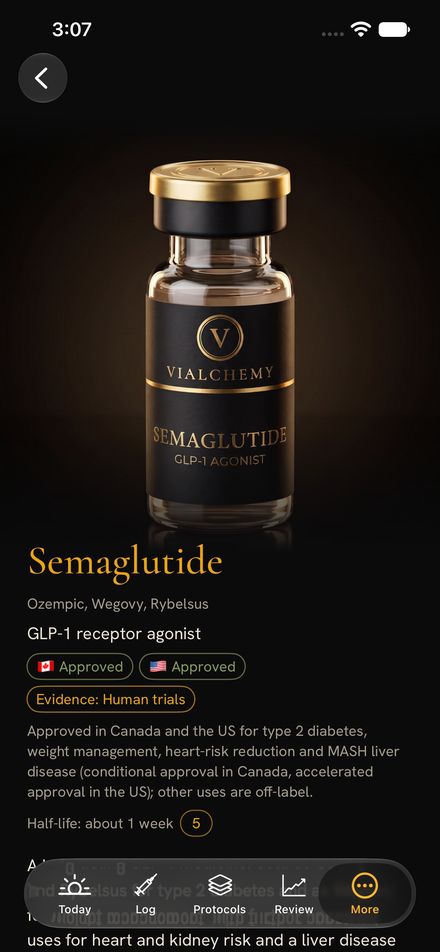
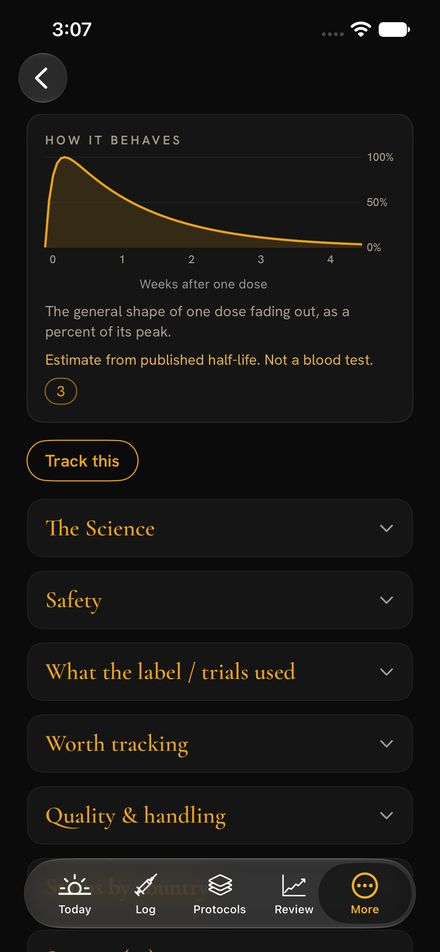
The top shows the compound's other names, class, Canada and US status, how strong the evidence is, and its half-life. Below are sections you open as you need them:
- The Science, with Animal and Lab tags on findings that don't come from people.
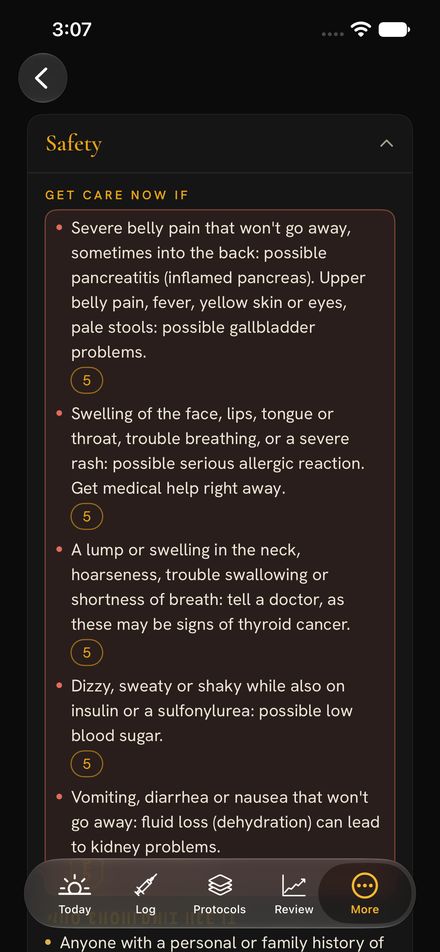
- Safety: a red Get care now box, who shouldn't use it, side effects, interactions and what isn't known.
- What the label / trials used: what was approved or studied. Not a recommendation.
- Labs to track, Quality & handling, Status by country, Videos and Sources.
- How it behaves: the shape of one dose fading out, as a percent of its peak.
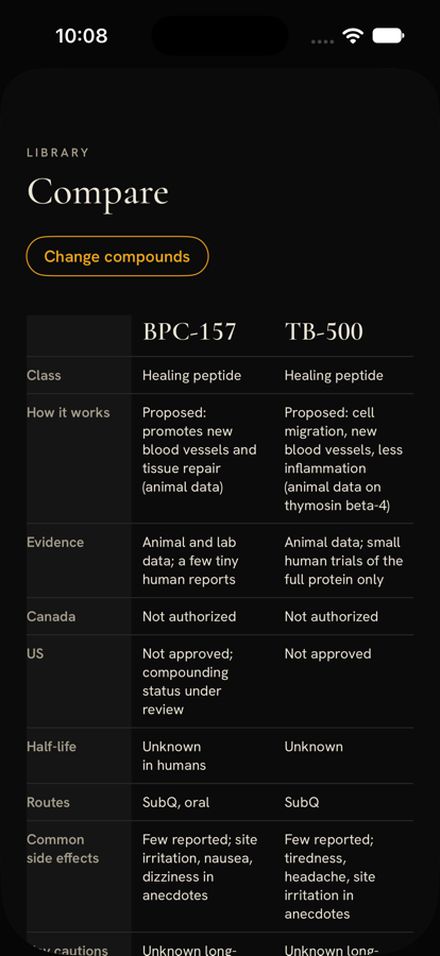
Track this adds the compound to a protocol, with the dose left for you to fill in. Compare puts compounds side by side.
Can't find something?
Tap Suggest a compound at the bottom of the list, or the link that appears when a search finds nothing. Suggestions are reviewed and added only when they can be sourced properly. Turn on Tell me when it's added to get a notice. You'll also find Guides (fasting, injection basics) and Your resources, where you can save websites, videos and documents.
Bloodwork
Give Vialchemy a PDF or a photo of your lab report and it pulls out every marker, value and reference range for you to check before saving. Go to More → Bloodwork → Add → Read a lab report.
- Pick the report: a PDF from Files, or a photo of the paper copy.
- Review every row. Each marker, value, unit and reference range can be edited, and you can untick any you don't want. Values are copied exactly as printed and never converted.
- Check the flags. A name Vialchemy doesn't recognise is marked New marker, a unit that differs from the usual one is pointed out, and a value printed as "<0.6" needs a number before it can be saved.
- Tap Save. Nothing is saved until you do.
Your markers then trend over time, and they show up in How's this dose going? and in Ask the Alchemist's answers.
Reading a report uses 5 of your monthly Alchemist messages and needs the Alchemist turned on. The file is never stored: it's read once and discarded, and patient and doctor details are left out.
Progress photos
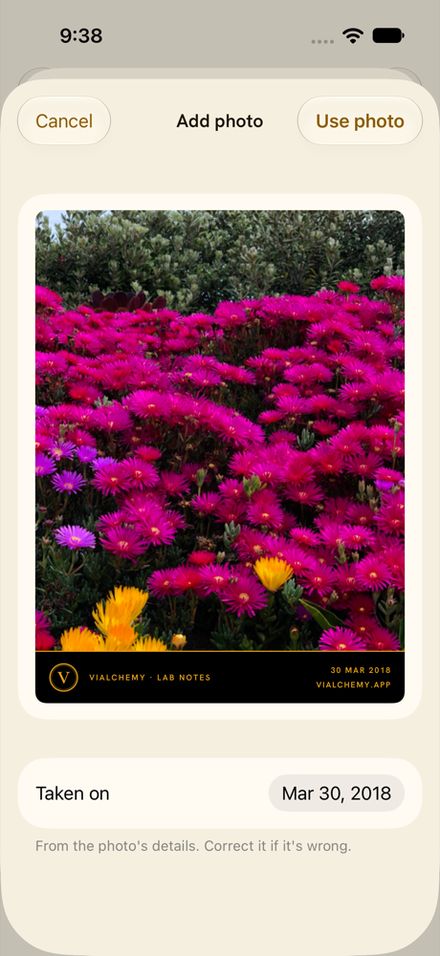
See the change the scale doesn't show. Take photos in the daily check-in, or add them any time from More → Photos → +.
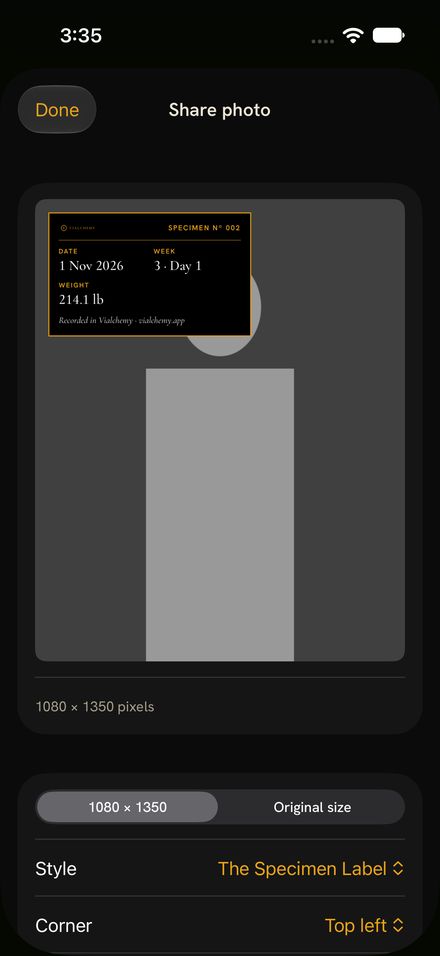
The stamp
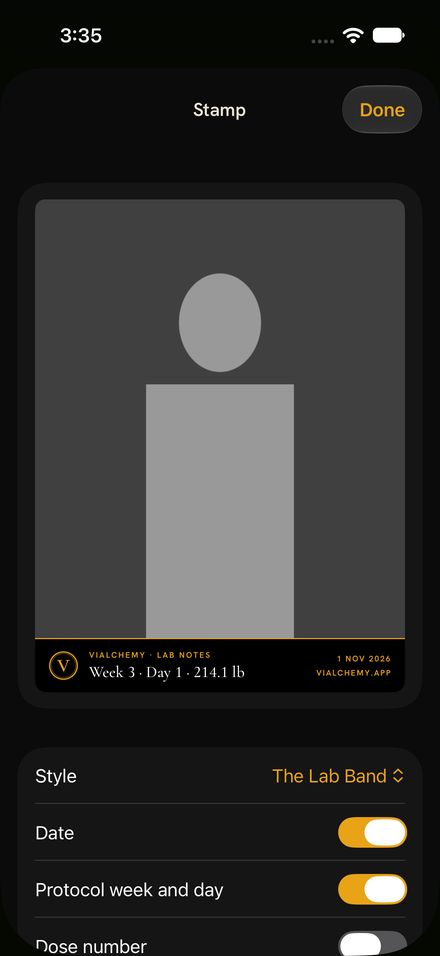
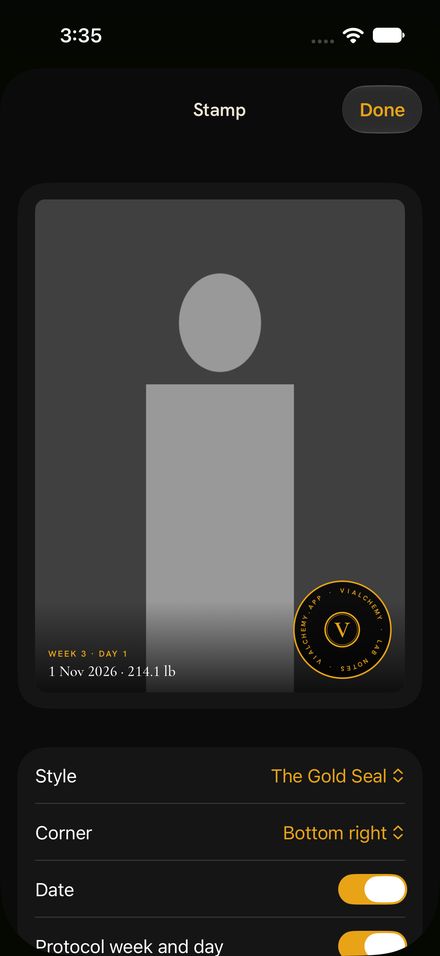
Every progress photo carries a Vialchemy stamp with the details you choose: date, protocol week and day, and weight are on by default. Add dose number, change since you started, your streak, compound names or your protocol name. Pick a style in Settings → Photos → Stamp:
- The Lab Band (the default): a strip along the bottom.
- The Gold Seal: a round seal in any corner.
- The Specimen Label: a label card in any corner.
Tap a stamp to change it on that one photo only. The original photo is never altered.
Compare and share
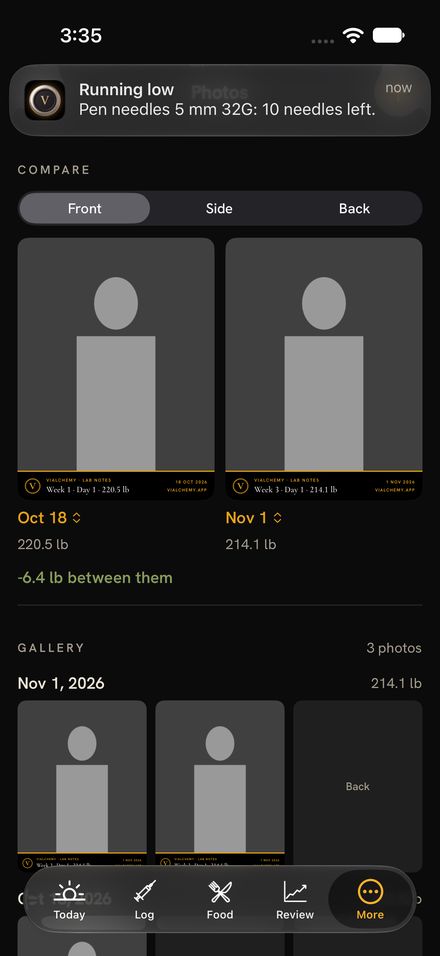
Compare puts two dates side by side for front, side or back, with the weight difference between them. To share, choose 1080 × 1350 (made for Instagram) or the original size; the stamp is burned in and the photo's hidden details, like location, are removed.
Food, water, protein and fasting
The Food tab and Today's rituals keep your protein, water and fasting on track, with targets you set.
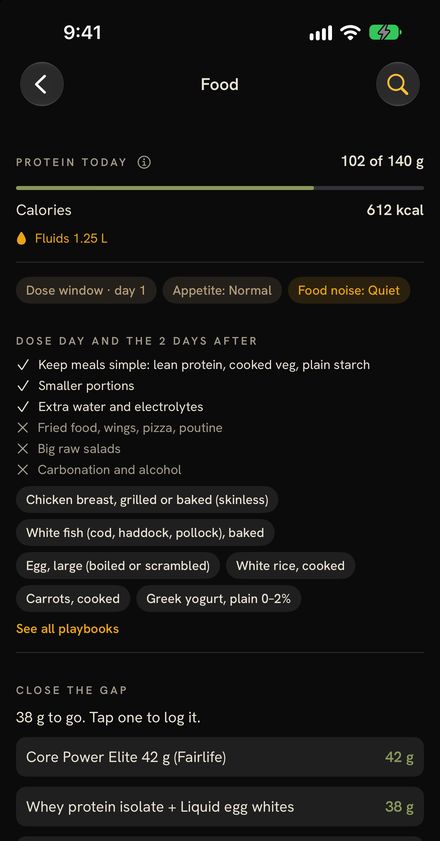
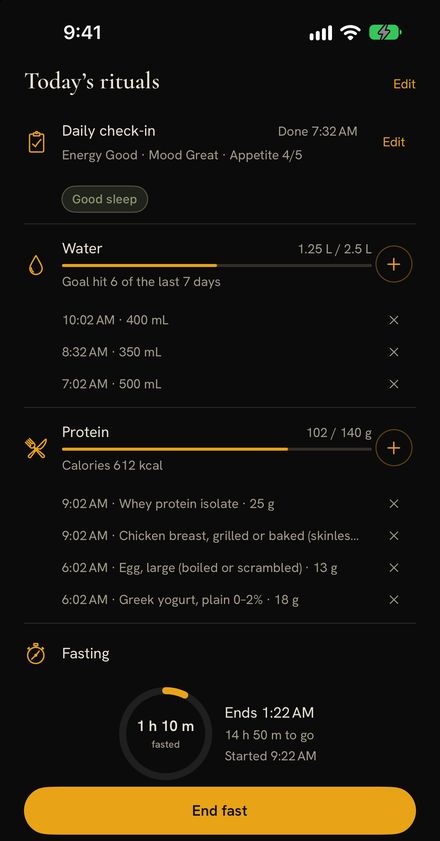
- Protein and calories. The Food tab shows today's protein against your goal, calories and fluids. Close the gap lists foods that would get you there; tap one to log it.
- Scan a barcode. Tap the scan button at the top of the Food tab and point your camera at the barcode, or type the number. Check the amount and nutrition, then tap Log it. If the product isn't found, the same form opens empty for you to fill in from the label. Your last 50 scans are kept on your phone.
- Water and protein. On Today, tap + beside each. One-off amount… adds an amount once; Save a new button… keeps one you use often, like a shaker or a favourite bar.
- Fasting. Start a fast from Today. A ring shows how long you've fasted and when it ends, and the timer appears on your Lock Screen. Log caffeine and electrolytes during the fast, then tap End fast.
Barcode lookups use Open Food Facts, a free food database. Only the barcode number is sent, nothing about you.
Vials and supplies
Know what's running out before it does. Vials and Supplies are both under More.
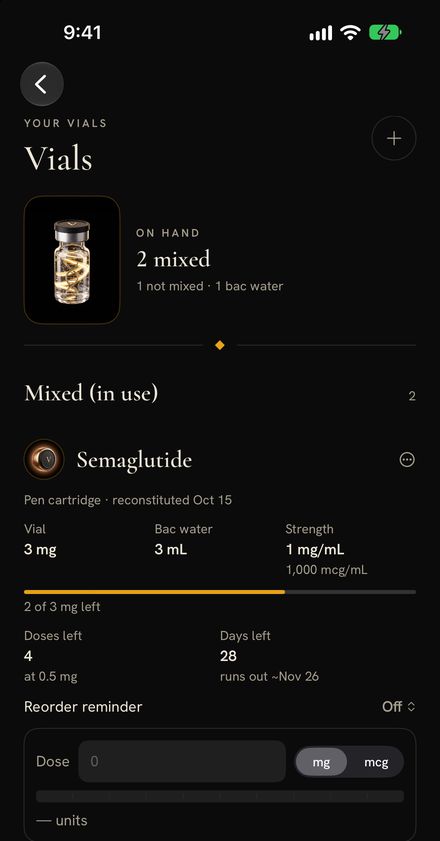
- Vials and pens. Add each vial or pen with its strength. Vialchemy counts down as you log doses from it and shows doses left, days left and the date it should run out. Turn on a reorder reminder to get a nudge in time.
- Supplies. Track needles, swabs and anything else you go through. When something runs low, a notice appears at the top of Today.
- Costs. Log what you buy (vials, needles and so on) and each protocol shows its weekly cost and when to reorder.
Each vial shows the compound's own vial artwork when the Library has one.
The Climb and Review
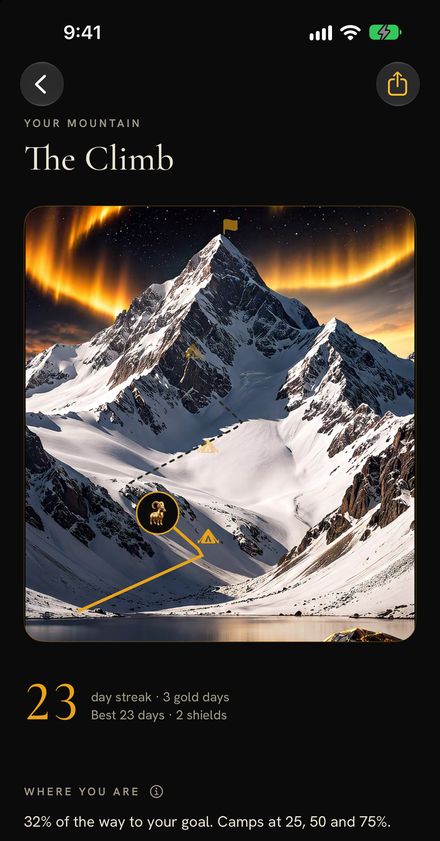
The Climb turns consistency into a mountain you climb, and Review shows what the climb is doing for you.
The Climb
- Streak: days in a row you've checked in. A gold day is a day you hit every goal.
- Shields are earned along the way and protect your streak on an off day.
- Where you are: how far you are toward your goal weight, with camps at 25, 50 and 75%.
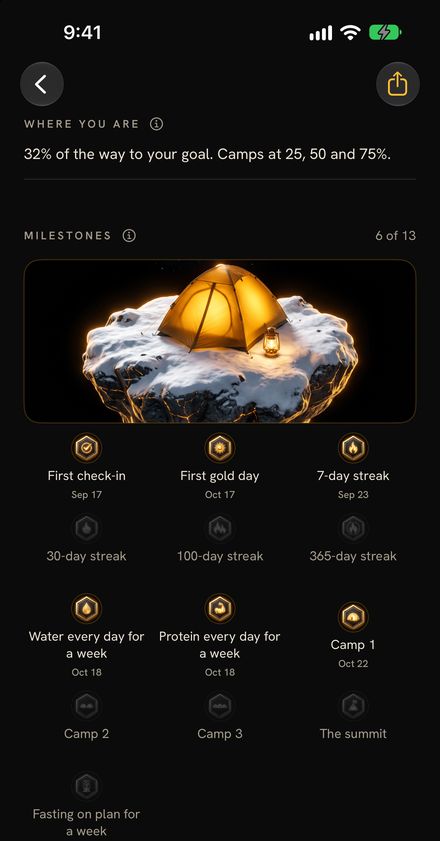
- Milestones: from your first check-in to a 365-day streak, plus a week of water or protein every day. The share button makes a card for your story, with no compound or protocol names on it.
Review
The Review tab sums up the last 7, 14 or 30 days, or one protocol: check-ins, average energy and mood, weight change and how often you hit each goal. Charts mark every dose change, so you can see what happened after it. Your week gives a short written summary once a week.
Discover
Research, regulator updates and guides worth your time, each with a short plain-English summary. If you'd look it up, it's in the Library; if you'd scroll it, it's in Discover. Open it from More → Discover.
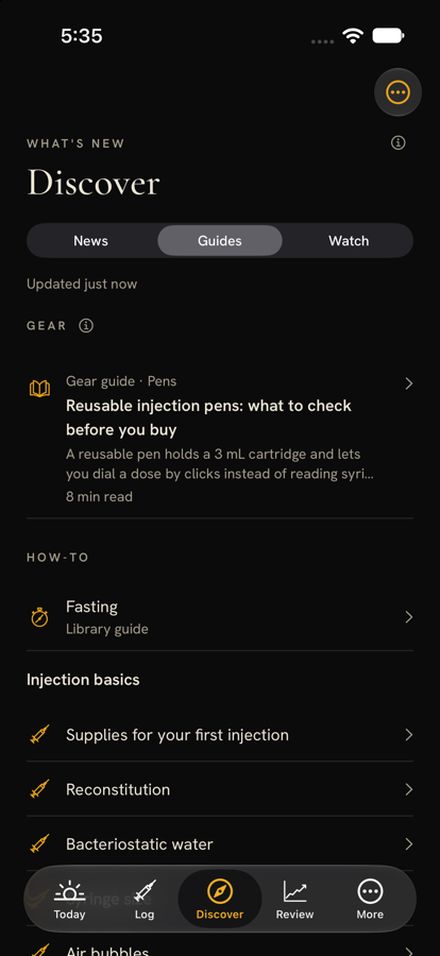
- News: new studies, trial updates and regulator notices. Filter to the compounds in your protocol.
- Guides: gear guides (pens, scales) and how-tos written for Vialchemy.
- Watch: new videos from creators, shown once there are videos to watch.
To keep Discover one tap away, tap Edit on the More page and pin it to your tab bar.
Your account, privacy and sync
Your log syncs to your private Vialchemy account, stored in Canada, so it follows you to a new iPhone. Your notes and the names you type are encrypted on your iPhone before they leave it.
| What | Where it goes | Who can read it |
|---|---|---|
| Notes, protocol names, injury and device names | Your account, encrypted on your iPhone first | Only you |
| The rest of your log (doses, check-ins, weight, water) | Your account in Canada | You; stored on Vialchemy's server |
| Apple Health data | Stays on your iPhone | Only you |
| Ask the Alchemist questions | Sent to our AI provider to answer | Anthropic, only to answer; not used for training, deleted within 30 days |
Save your recovery key. After your first encrypted note syncs, Vialchemy shows you a 56-character recovery key, once. Keep it somewhere safe, like a password manager. Without it, encrypted notes can't be recovered on a new phone, even by Vialchemy. You can view it again in Settings → Account → Recovery key.
Settings → Privacy
- Require Face ID, and how soon it locks: immediately, or after 1, 5 or 15 minutes away. Add a 6-digit Vialchemy PIN instead of your iPhone passcode if you like.
- Private notifications say only "Dose due", not what's due.
- Show protocol names on lock screen is off unless you turn it on.
The app switcher always shows only the Vialchemy logo, and widgets hide their contents while your iPhone is locked.
Settings → Account
Shows your sync status and has Sign out and Delete account. Deleting your account asks you to sign in with Apple once more, then asks whether to also delete all your Vialchemy data from this iPhone and your other devices, or keep it.
Feedback and getting help
You're one of the first people using Vialchemy, and what you tell us shapes what it becomes. Bugs, ideas and "this annoyed me" are all useful.
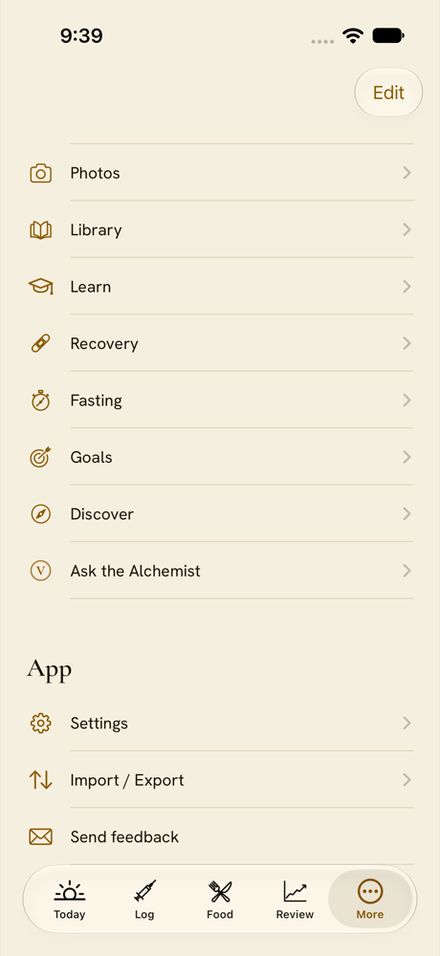
- Send feedback: at the bottom of More. It opens an email to [email protected] with your app version and iPhone model filled in, and nothing from your log.
- TestFlight feedback: take a screenshot in Vialchemy, tap the preview, then Share Beta Feedback and add a sentence.
- If the app ever freezes, Vialchemy notes it on your phone. A Share freeze report row then appears in More; tap it to send the report. Nothing is sent unless you do.
- Little ⓘ buttons throughout the app explain what you're looking at.
Follow @vialchemyapp on Instagram for updates and new features, and visit vialchemy.app.